[유니티] UNITY 안드로이드 앱을 만들고 나서 시작할 때 자꾸만 180도로 화면이 회전합니다.
안녕하세요. 오늘도 평화롭게 폭우가 내리는 2022년 여름입니다.
유니티로 안드로이드 어플리케이션을 만들고 나서 시작화면이 자꾸만 180도로 돌아가는 현상이 났습니다.
다른 분들도 저와 비슷한 경험을 하신 분들이 있을 것 같습니다.
Why??? 왜 이런 현상이 일어났는지 알아보겠습니다.
유니티 안드로이드 플랫폼에는 화면 회전을 설정하는 곳이 있습니다.
Player Settings/Player/Resolution and Presentation/Default Orientation
에 들어가서 설정을 수정하면 화면 회전을 변경할 수 있습니다.
아래 셋팅값을 보면 Default Orientation이 Portrait Upside Down 으로 설정되어서 시작할 때 화면이 180도 회전했었습니다.
그래서 셋팅값을 Portrait으로 변경 후 정상적으로 시작하는 것을 확인했네요 ^^;
그럼 오늘도 즐유~

설명
1. Portrait : 세로 고정!
; [코드 작성 시] Screen.orientation = ScreenOrientation.Portrait;
1. Portrait Upside Down : 윗부분이 아래로 향하는 세로 고정!
; [코드 작성 시] Screen.orientation = ScreenOrientation.PortraitUpsideDown;
1. LandScapeLeft : 세로에서 반시계방향으로 90도인 가로 고정!
; [코드 작성 시] Screen.orientation = ScreenOrientation.LandscapeLeft;
1. LandScapeRight : 세로에서 시계방향으로 90도인 가로 고정!
; [코드 작성 시] Screen.orientation = ScreenOrientation.LandscapeRight;
1. Auto Rotation : 모바일 기기의 가로와 세로 위치에 따라서 회전이 변경!
; [코드 작성 시] Screen.orientation = ScreenOrientation.AutoRotation;
Screen.autorotateToPortrait = true;
Screen.autorotateToPortraitUpsideDown = true;
Screen.autorotateToLandscapeLeft = true;
Screen.autorotateToLandscapeRight = true;
//true: 회전가능,false: 회전안됨
순서
1. File/Build Settings 또는 단축키 Ctrl+Shift+B.

2. Android 로 플랫폼을 변경.

3. Build And Run 버턴이 활성화 되면 플랫폼 변경이 완료됨.

4. Player Settings 버턴을 클릭.

5. Player를 클릭.

6. Resolution and Presentation 클릭.
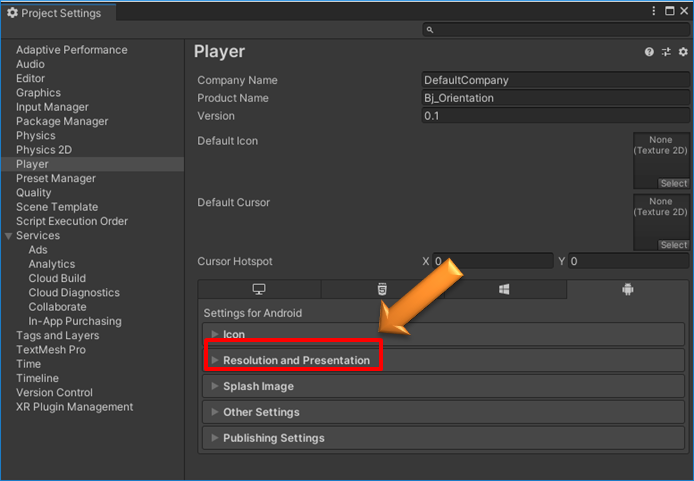
7. Default Orientation 클릭.
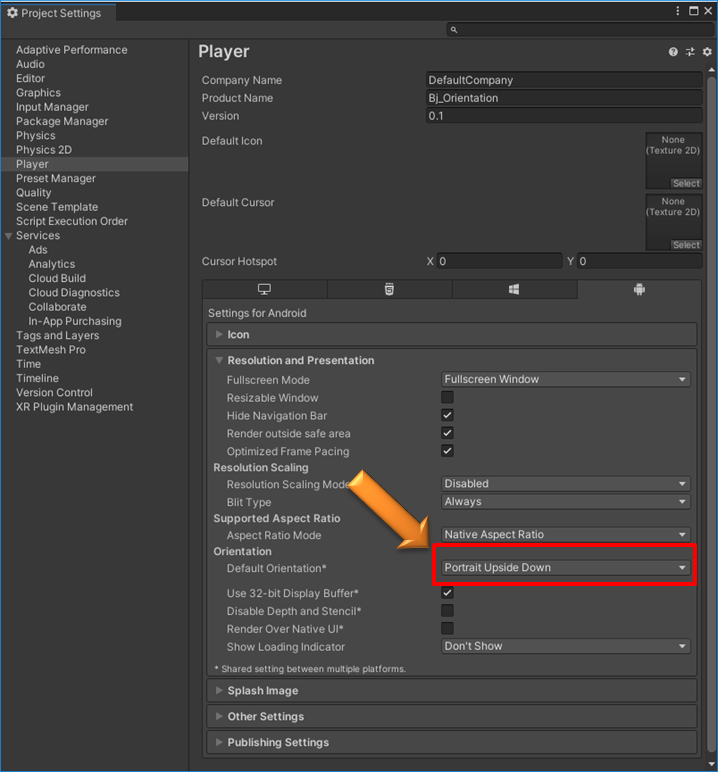
8. 셋팅값 변경
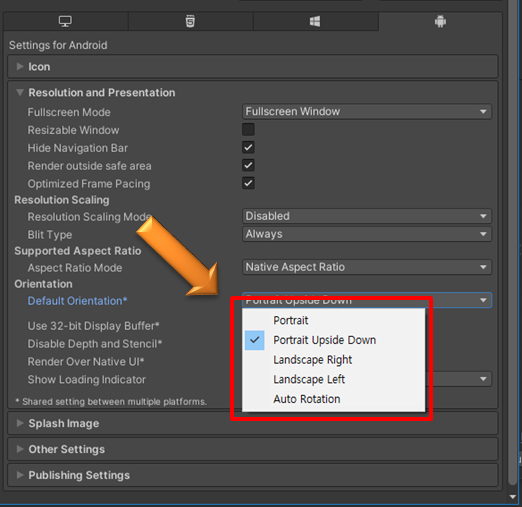
9. 따로 저장하지 않아도 창을 닫으면 설정이 저장됨.
'유니티 프로그램' 카테고리의 다른 글
| [유니티] UNITY 플레이시간(타이머)을 다음 씬(SCENE)까지 끊김없이 흐르게 하려면 어떻게 해야 할까요? (0) | 2022.08.09 |
|---|---|
| [유니티] UNITY GameObject의 위치를 랜덤(random)하게 생성하려면 어떻게 하나요? (0) | 2022.08.01 |
| [유니티] UNITY 싱글톤패턴(Singleton Pattern)은 어떻게 쓰나요 (0) | 2022.07.26 |
| [유니티] UNITY Box Collider를 켜고, 끄는 코딩방법은 뭔가요? (0) | 2022.07.19 |
| 유니티 프로그램에 대한 다양한 내용을 담을 블로그 입니다. (0) | 2022.07.07 |